
At your service!
We're here to help, and nothing will hold you up while you set up your budget. Manual, videos, FAQ, email: you'll always find an answer to your problem.

Help centre
Find your answer by topic.
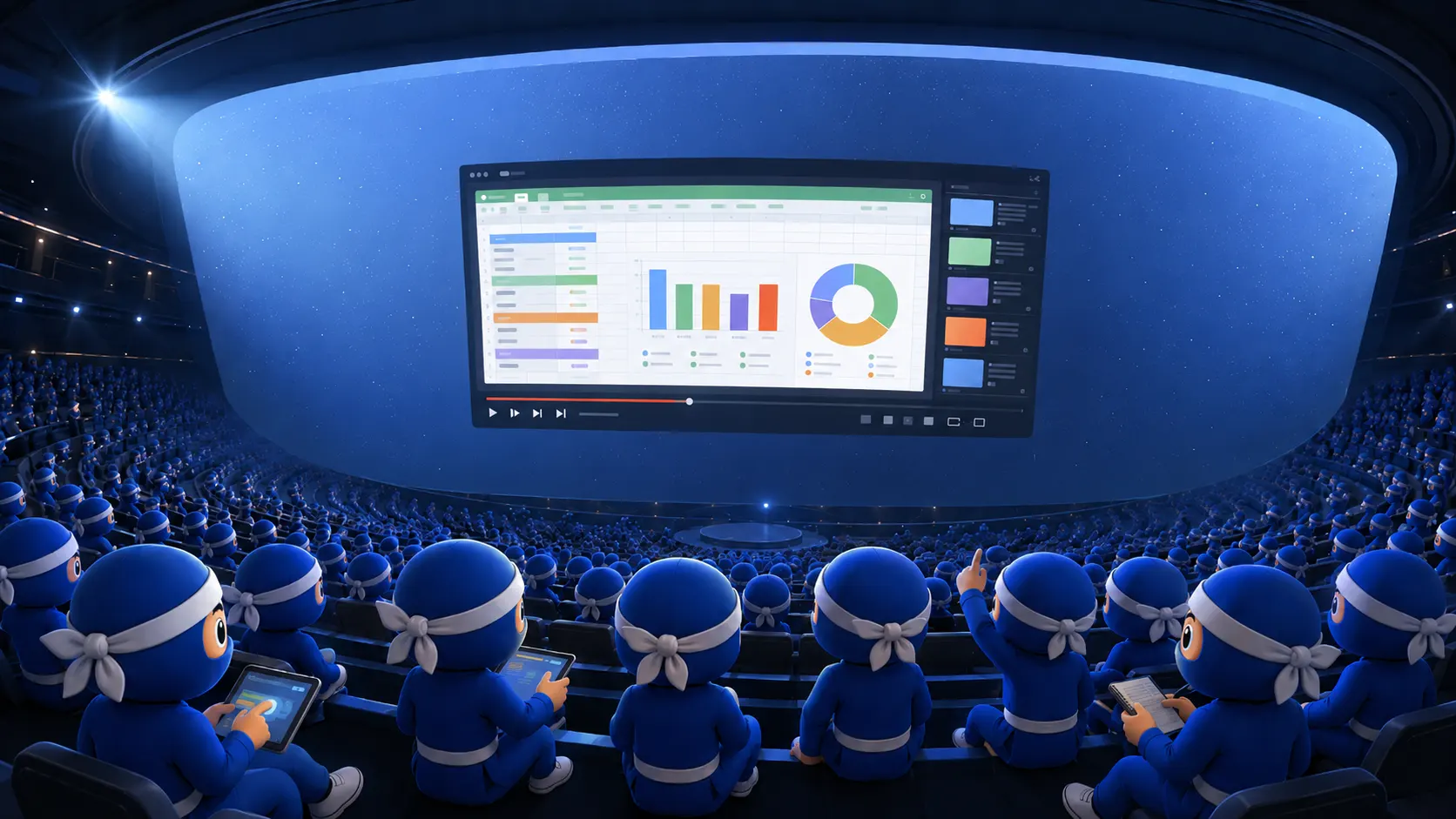
Video tutorials
Five short videos to master each step, at your own pace.
Setup and configuration
5 min
Creating your budget
8 min
Recording transactions
4 min
The dashboard
10 min
A complete use case
15 min
Downloadable documentation
The complete template guide, in your language.
Frequently asked questions
23 questions sorted by topic. Expand a topic to see its questions.
Do I need technical skills?
No. If you know how to use Google Sheets, you know how to use The NINJA BUDGET. No formulas to write, no scripts to install: everything is already set up.
What are the requirements?
A free Google account and Google Sheets. No installation, no macros. It works on computer, tablet and mobile, in any recent browser.
How long does it take to set everything up?
About 25 minutes for the initial setup, then 15 minutes a week for around 30 transactions.
Does it work on my phone?
Yes, through the Google Sheets app on iOS and Android. Entering data works well, but a computer screen remains more comfortable for viewing the dashboards and charts in detail.
How do recurring entries work in the Budget?
Enter the transaction, its type (expense, income or savings), the frequency (monthly, bi-monthly, quarterly, half-yearly, yearly), the start and end dates, and the amount. The transaction is carried over automatically across the whole period in your budget.
How long does it take to record a transaction?
About 15 seconds. Date, amount, account, type and category are all chosen from drop-down lists, with no manual re-entry.
What is the difference between expenses, income, savings and internal transfers?
These are the 4 transaction types in the template. Internal transfers (between your own accounts) are kept separate so they never distort your expense or income totals.
Can I compare my forecast budget with the actual figures?
Yes. The dashboards always show a Budget column and an Actual column side by side, across 3 levels: totals, types and categories.
What indicators does the dashboard show?
Current balance, upcoming expenses and income, forecast balance, Budget vs Actual summary, balance and breakdown by category.
Can I view a specific period?
Yes. Select a month or the whole year: all charts and indicators recalculate automatically.
How do I track my savings goals?
Create up to 10 projects with a target amount. A pie chart shows the progress and the amount still to save for each one.
Can I manage several bank accounts?
Yes, up to 10 accounts in one place, each with a real-time balance. Transfers between your accounts never affect your expense or income totals.
Can I customise my expense categories?
Yes, in the CONFIGURATION tab. Start with the default categories and refine them over time, without breaking the existing formulas.
Can I change my budget's start period?
Yes. Choose any starting month and year: the template automatically adjusts the 12 rolling months and all the headers.
Can I change the language after setup?
Yes, at any time from the CONFIGURATION tab. All labels, month names and instructions change instantly, with no loss of data.
Can I rename my bank accounts?
Yes. Give them any name you like (current account, savings account, joint account, etc.) directly in the CONFIGURATION tab.
I haven't received my email after buying, what should I do?
Check your spam folder: the email normally arrives within 2 minutes. Still nothing after 5 minutes? Write to us at support@theninjabudget.com with your order number.
I've lost the link to my template, how do I find it again?
Look for the purchase confirmation email in your inbox, or contact support@theninjabudget.com from the address you used to buy: we'll send you the link again.
A formula is showing an error, what should I do?
Avoid editing cells outside the designated input areas (white background). If an error occurs, contact support@theninjabudget.com with a screenshot: we reply within 2 working days.
Can I back up or export my data?
Yes. The template lives in your Google Drive: use Fichier > Télécharger to export it to Excel or PDF at any time, just like any Google Sheets file.
Is the Google Sheets mobile app enough?
Yes, no extra app is needed. Download Google Sheets free of charge on iOS or Android and open your template as usual.
Can I record a transaction straight from my phone?
Yes, in real time if you wish. Most users record entries once or twice a week, but nothing stops you entering them straight away from the mobile app.
Do the charts display well on a small screen?
They remain readable, but a computer or tablet screen is more comfortable for analysing the dashboard in detail.
Contact us
A question the FAQ doesn't answer? Write to us.
Response time
2 working days
Languages
FR · EN · DE · ES · IT
Support
Included for life, at no extra cost